Script modules allow users to create collections of language specific functions that can be used in deployment processes across multiple projects.
Creating a script module
- Navigate to Deploy ➜ Manage ➜ Script Modules ➜ Add Script Module.
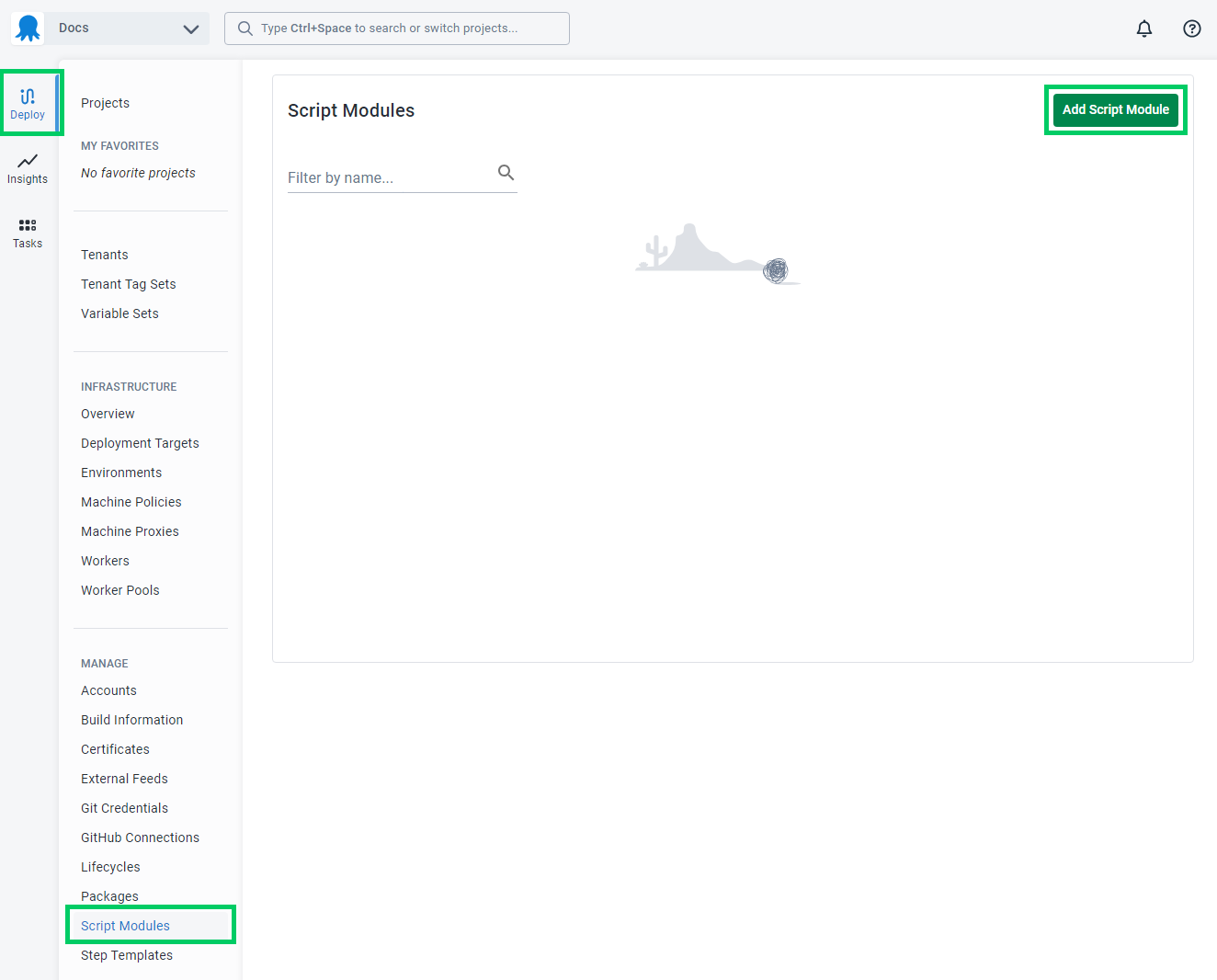
- Name your new Script Module:
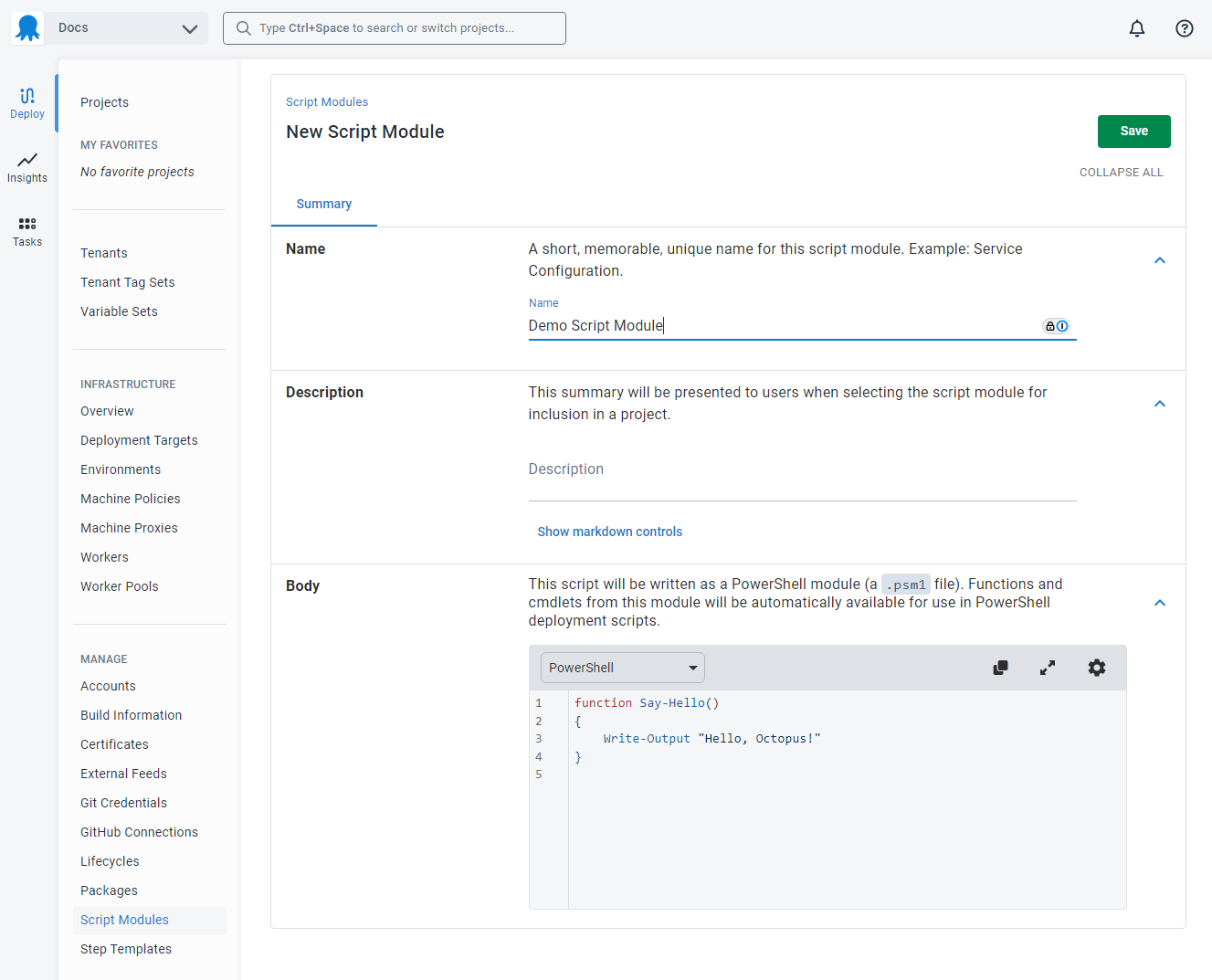
- Your new script module will default to PowerShell and come with a function called Say-Hello. Each supported script language has a similar function. In this walk-through we will work with PowerShell and modify the provided sample function a bit with the following code for the sake of showing a better example:
function Say-Hello($name)
{
    Write-Output "Hello $name. Welcome to Octopus!"
}After inserting the modified function, the Script Module should look like this:
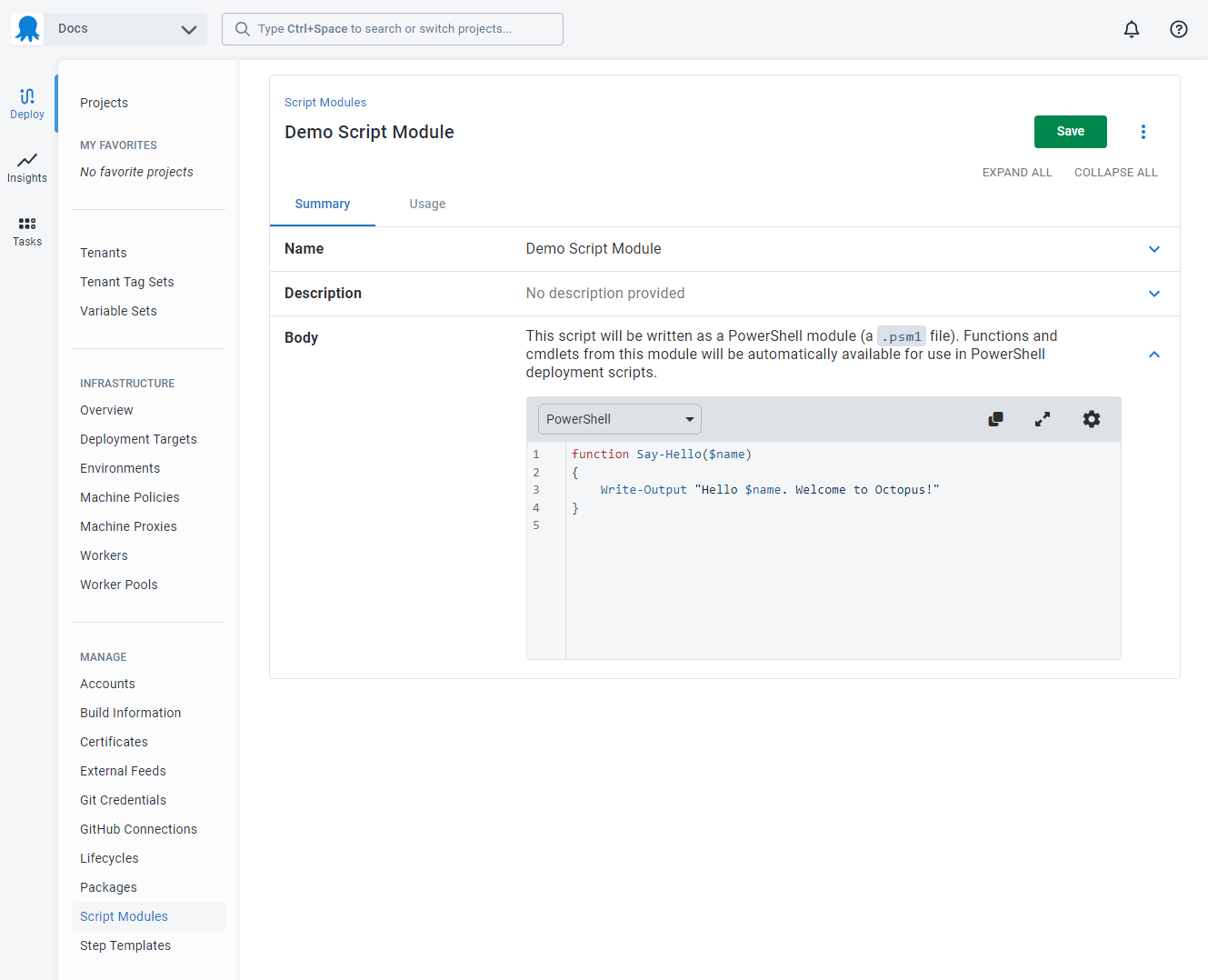
Once this is done, click on Save.
Using a script module on a deployment
Once you have created a Script Module, you can start using the functions it contains in Script Steps in your deployment processes. These steps must use the same language as the Script Module.
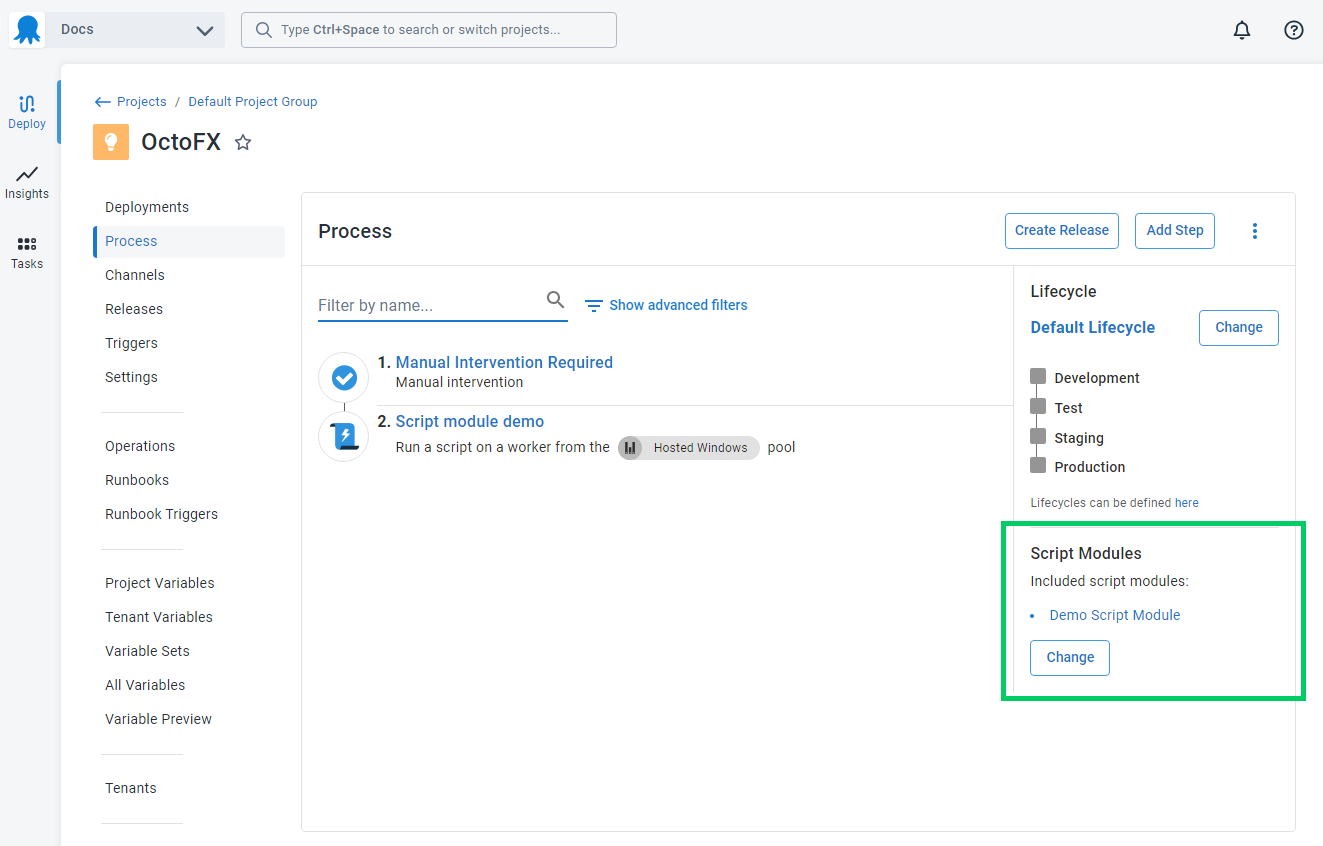
- Go to your Deployment Process and click Include.
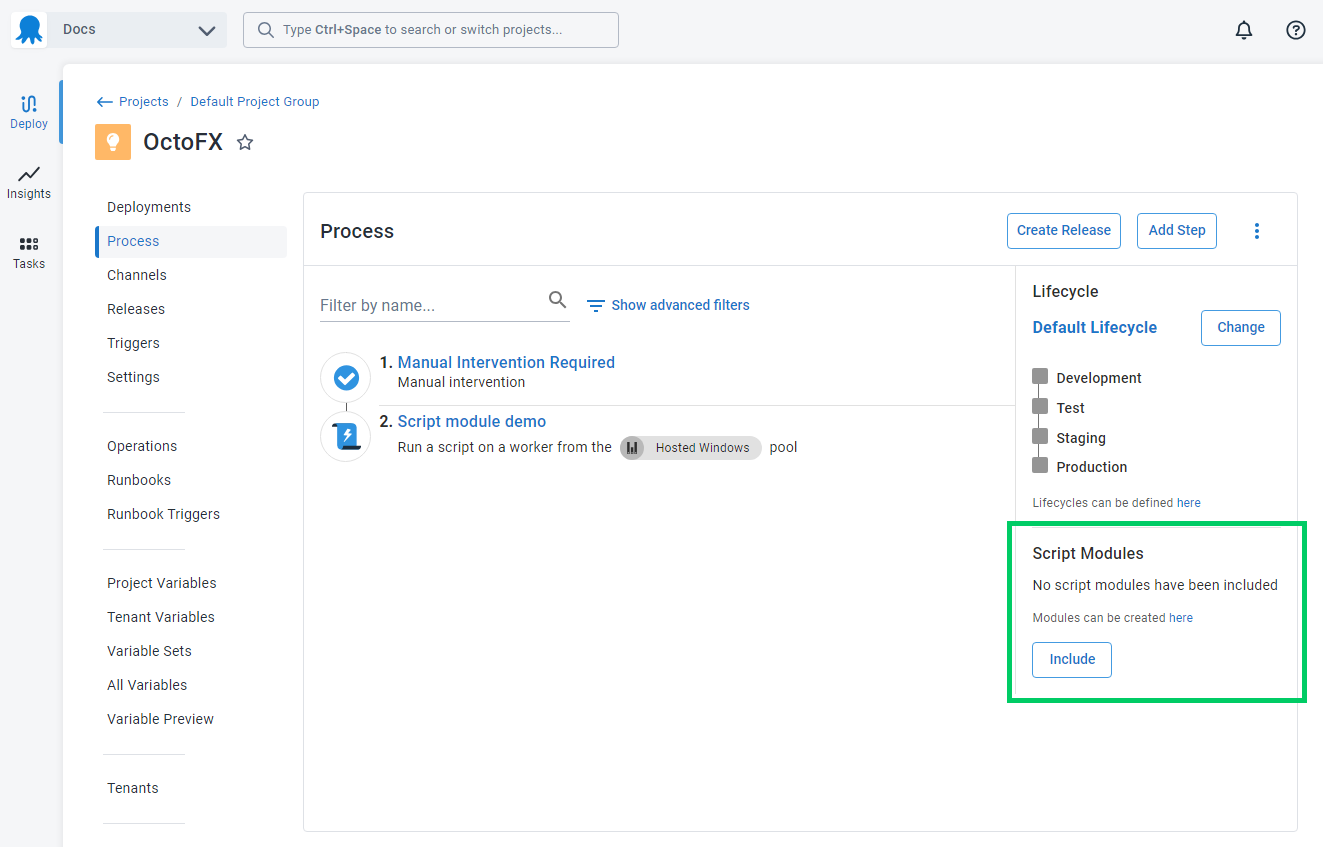
A new window will pop up up, prompting you to select you script module. Select the module you just created (make sure the check-box is checked) and hit Save.

You will now be able to see your module loaded on your Deployment Process
- Add a Script step, ensure you choose PowerShell and call the Say-Hello function from it.
Say-Hello -name "George"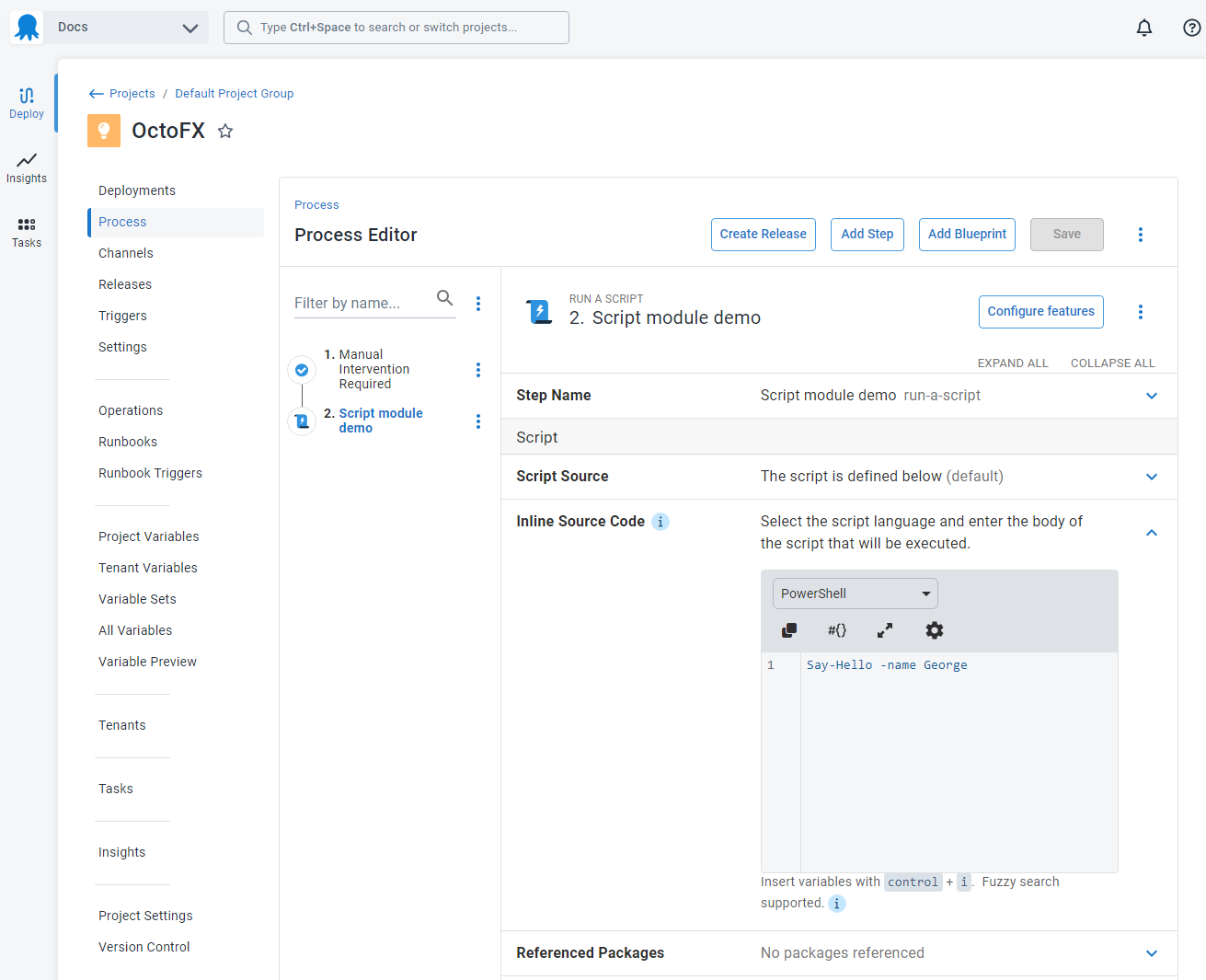
Once you’re done, hit Save.
Make sure to select a Target Tag, an Environment and to put a Step Name
-
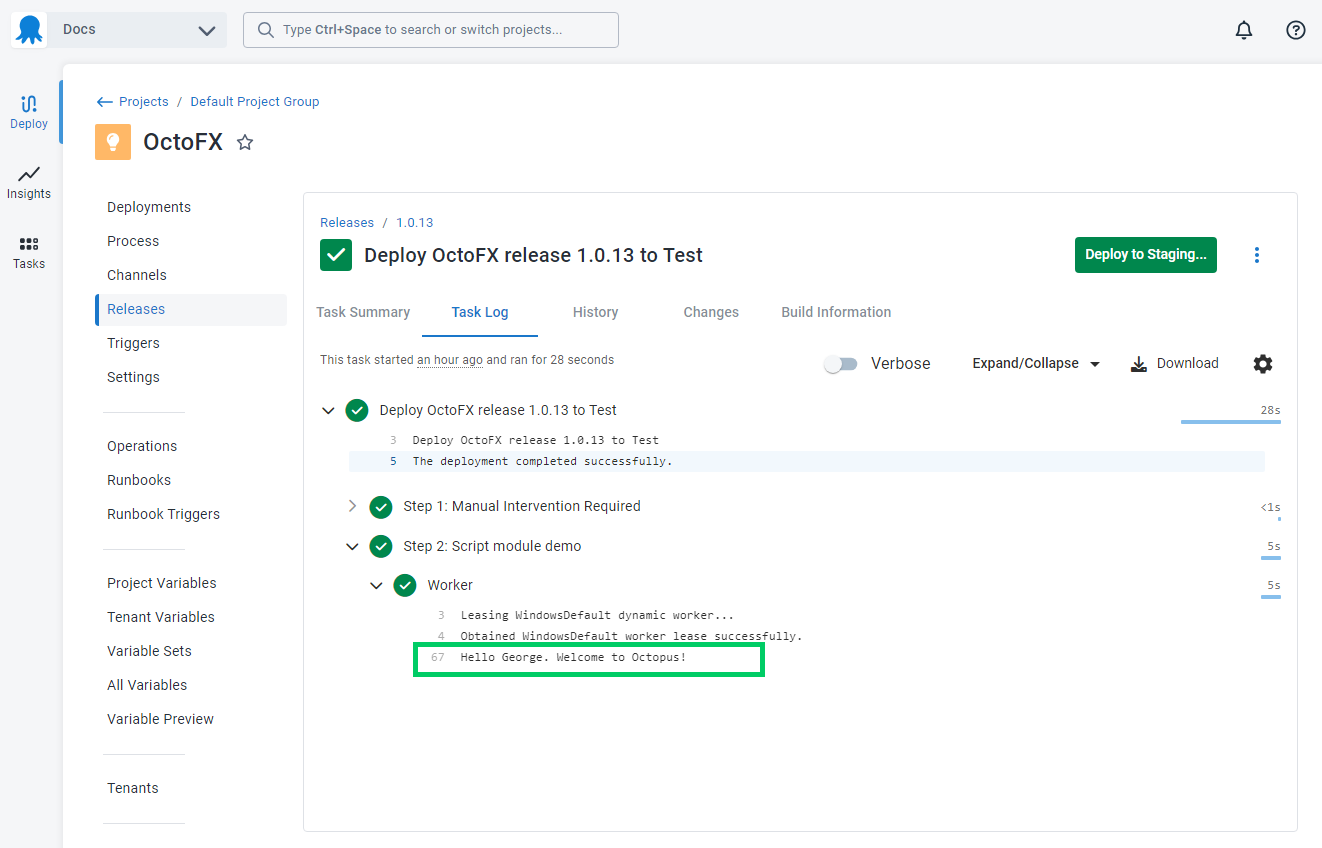
Create and Deploy a release.
-
Check the Release task log and expand all the steps. You should be able to see the output of the Say-Hello function in there.
Using script modules
Each language has a slightly different syntax for using the Script Module. Please see the language specific section below.
PowerShell script modules
PowerShell script modules get automatically loaded once for every PowerShell script step in your deployment process - the functions and cmdlets will automatically be in scope for your script.
Script Module:
function Say-Hello($name) {
    Write-output "Hello $name. Welcome to Octopus!"
}Script Step:
Say-Hello -name "George"Gotcha
If your process has 4 steps (i.e Stop IIS, Backup, Deploy, Start IIS) the entire module will get loaded once at the start of each step. Because of this we encourage users to avoid putting code outside functions on your Script Modules. This way the code will only get executed when the function is properly called from a PowerShell Script step.
In the example Script Module below, the first line which attempts to stop the service “ImportantService” will run for every PowerShell-Script-based step on your deployment. The first time it might succeed (stopping the service), but subsequent tries will most likely make the overall deployment fail.
# bad example - do not copy
Stop-Service -Name ImportantService

function Say-Hello($name) {
    Write-output "Hello $name. Welcome to Octopus!"
}Bash script modules
Bash Script Modules are written as a .sh file next to your script. Import them
via source MyScriptModule, where MyScriptModule is the name of your Script
Module with invalid characters removed. The help text above the Script Module body
will show the filename that will be created.
Given a Bash Script Module called Bash Script Module:
say_hello() {
    echo "Hello $1. Welcome to Octopus!"
}Call it from your Script Step with:
source BashScriptModule.sh
say_hello GeorgeC# script modules
C# Script Modules are written as a .csx file next to your script. Import them
via #load "MyScriptModule, where MyScriptModule is the name of your Script
Module with invalid characters removed. The help text above the Script Module body
will show the filename that will be created.
The #load statement must be at the top of your script.
Given a C# Script Module called CSharp Script Module:
public void SayHello(string name) {
    Console.WriteLine("Hello " + name + ". Welcome to Octopus!");
}Call it from your Script Step with:
#load "CSharpScriptModule.csx"
SayHello("George");Python script modules
Python Script Modules are written as a .py file next to your script. Import them
via import MyScriptModule, where MyScriptModule is the name of your Script
Module with invalid characters removed. The help text above the Script Module body
will show the filename that will be created.
Once imported, functions from the Script Module will be available prefixed with the Script Module name.
Given a Python Script Module called Python Script Module:
def say_hello(name):
print(f"Hello {name}. Welcome to Octopus!")Call it from your Script Step with:
import PythonScriptModule
PythonScriptModule.say_hello("George")Usage
From the Usages tab, you can see where a Script Module is being used. This shows the Projects that are referencing the Script Module, as well as the Releases that have a snapshot of the Script Module. This allows you to assess the ramifications of changing a Script Module, as well as track down where it has been used in the past.

Permissions
Script modules are represented as unscoped variable sets. This means that the user role must not be scoped to specific environments.
To be able to access and use the script modules feature you will require the following permissions:
To see the “Script Modules” menu requires the VariableView permission.
To create a new Script Module requires the LibraryVariableSetCreate permission.
To view an existing Script Module requires the LibraryVariableSetView, VariableView and VariableViewUnscoped permissions.
To edit an existing Script Module requires the LibraryVariableSetEdit permission.